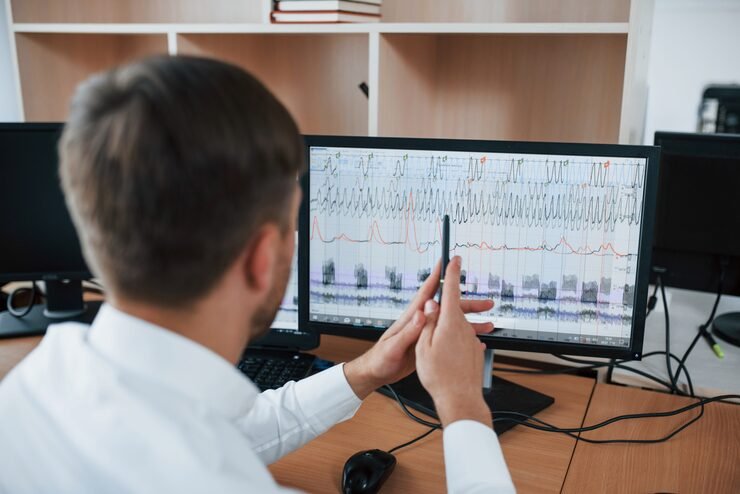
A def monitor is generally searched in the context of computer displays, screen technology, or a specific monitor-related term, although “monitor” itself has several meanings. In computing, a monitor is an output device that presents text, images, video, and other visual information generated by a computer or another electronic source. Modern monitors are commonly based on LCD or related flat-panel technologies and are available in many sizes, resolutions, refresh rates, and configurations.
Understanding monitors is useful whether you are setting up a home computer, building a professional workstation, choosing a gaming display, or replacing an older screen. The right monitor can improve productivity, image quality, comfort, and the overall computing experience.
What Is a Computer Monitor?
A computer monitor is a visual output device used to display information produced by a computer. It can show documents, websites, photographs, videos, software interfaces, games, charts, and other forms of digital content.
Unlike a keyboard or mouse, which are primarily input devices, a monitor provides visual output. A computer sends image information through a compatible connection, and the monitor processes that signal to create the visible picture.
Modern monitors are usually separate peripherals connected to desktop computers, although laptops and all-in-one computers have displays integrated into their designs.
How Does a Monitor Work?
A monitor receives a video signal from a computer, graphics card, game console, media player, or another compatible device. Internal electronics process the signal and control individual pixels on the display panel.
Pixels are tiny elements that combine to create images. When millions of pixels are controlled in different ways, they can produce text, photographs, animations, and video.
The monitor’s resolution determines how many pixels are arranged across the display. A higher resolution generally allows more visual detail, assuming the source device and software can support it.
For example, Full HD uses 1920 horizontal pixels and 1080 vertical pixels. Higher-resolution displays may provide 2560 × 1440, 3840 × 2160, or other configurations.
Main Types of Computer Monitors
Monitors can be classified according to display technology, size, intended use, and other characteristics.
Some of the most common categories include:
- LCD monitors
- LED-backlit monitors
- OLED monitors
- Gaming monitors
- Professional monitors
- Ultrawide monitors
- Curved monitors
- Portable monitors
- Touchscreen monitors
- High-resolution monitors
The appropriate type depends on what the user needs from the display.
LCD Monitors
Liquid crystal display technology has become a standard choice for computer screens. LCD panels are relatively thin and can provide good image quality while consuming considerably less physical space than traditional CRT displays.
Modern LCD monitors are generally combined with LED backlighting, which contributes to their slim construction.
OLED Monitors
OLED displays use self-emitting pixels rather than relying on a conventional backlight. This technology can provide strong contrast and deep blacks because individual pixels can be controlled independently.
OLED displays are increasingly used in premium monitors, particularly for gaming and professional visual applications.
Monitor Size and Resolution
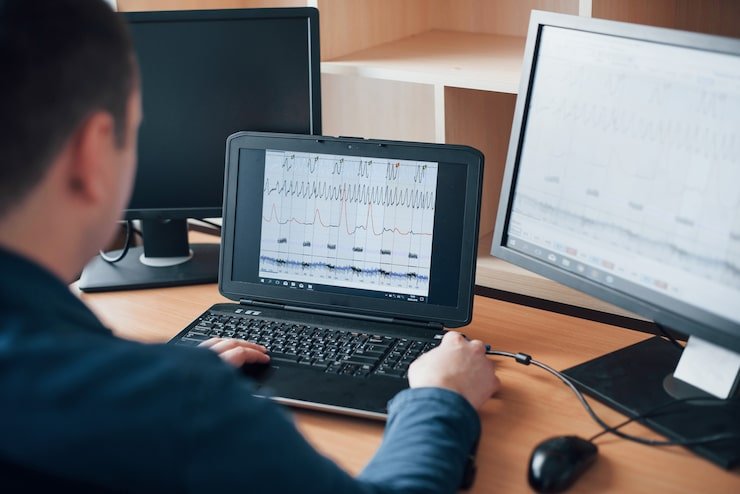
Two of the most important specifications when selecting a monitor are screen size and resolution.
Monitor size is normally measured diagonally from one corner of the visible screen to the opposite corner. Common sizes include 22, 24, 27, 32, and larger displays.
Resolution refers to the number of pixels displayed horizontally and vertically. More pixels can provide greater image detail and allow more information to fit on the screen.
Common Monitor Resolutions
| Resolution | Common Name | Typical Uses |
|---|---|---|
| 1920 × 1080 | Full HD | Office work, general computing, gaming |
| 2560 × 1440 | QHD | Productivity, gaming, creative work |
| 3840 × 2160 | 4K UHD | Design, video, professional work |
| 5120 × 2880 | 5K | Professional creative applications |
The best resolution depends on screen size, viewing distance, graphics hardware, software requirements, and budget.
Refresh Rate
Refresh rate indicates how many times per second the monitor can refresh the displayed image. It is measured in hertz, or Hz.
A 60 Hz display refreshes the image up to 60 times per second. Higher-refresh-rate monitors may operate at 120 Hz, 144 Hz, 165 Hz, 240 Hz, or higher depending on the model.
For ordinary office tasks, 60 Hz can be sufficient. Gaming users may prefer a higher refresh rate because it can make compatible motion appear smoother.
However, the computer or console must also be capable of delivering an appropriate frame rate. Buying a high-refresh-rate display does not automatically guarantee a high frame rate.
Response Time
Response time describes how quickly a pixel can change from one state to another under a particular measurement method.
Lower response times can be useful for fast-moving content because they may reduce visible ghosting or motion artifacts.
Gaming monitors often emphasize response-time specifications, but users should examine the testing method because response-time figures can vary depending on how they are measured.
For office productivity, response time is usually less important than readability, resolution, ergonomics, and connectivity.
Panel Technologies
Different panel technologies provide different combinations of contrast, viewing angles, color performance, and response characteristics.
The most commonly discussed LCD panel types are IPS, VA, and TN.
IPS Panels
IPS panels are popular for productivity and creative applications because they can provide wide viewing angles and consistent color reproduction.
They are useful when multiple people need to view the screen or when accurate image presentation matters.
VA Panels
VA panels are generally associated with strong contrast. They can be suitable for entertainment, movies, general computing, and applications where deeper blacks are desirable.
TN Panels
TN technology has traditionally been associated with fast response times and affordable pricing. It may be suitable for users who prioritize speed and cost, although other panel technologies are now widely available.
Panel Comparison
| Panel Type | Common Strength | Considerations |
|---|---|---|
| IPS | Viewing angles and color consistency | Contrast varies by model |
| VA | Strong contrast | Motion characteristics vary |
| TN | Speed and affordability | Viewing angles may be narrower |
| OLED | Contrast and pixel-level control | Usually more expensive |
The quality of an individual monitor depends on more than the panel technology alone.
Connectivity Options
A monitor must have a compatible connection to receive a video signal from the source device.
Common connections include HDMI, DisplayPort, USB-C, DVI, and VGA.
HDMI is widely used with computers, gaming consoles, media players, and other consumer electronics. DisplayPort is common on desktop computers and professional systems. USB-C can support video on compatible devices and may also provide power or data depending on the implementation.
Older equipment may still use VGA or DVI.
Before buying a monitor, check the ports on both the display and the computer or device that will provide the video signal.
Monitor Features for Productivity
A monitor can significantly affect everyday productivity.
A larger display can make multitasking easier by providing more space for documents, browsers, spreadsheets, communication applications, and other software.
Some monitors also support split-screen or picture-by-picture functions, allowing users to view content from multiple sources.
Other useful productivity features can include:
- Height adjustment
- Tilt adjustment
- Swivel capability
- VESA mounting
- Built-in USB hubs
- Multiple video inputs
- Blue-light reduction modes
- Flicker-reduction technology
- Integrated speakers
Ergonomic features are particularly valuable for people who spend several hours working at a computer.
Gaming Monitors
Gaming monitors are designed with features intended to support fast-moving visual content.
Important specifications can include:
- High refresh rate
- Low response time
- Adaptive synchronization
- Appropriate resolution
- Low input latency
- Gaming-oriented display modes
- Multiple connectivity options
A gaming monitor should be matched to the graphics card or console. A high-resolution display with a high refresh rate may require powerful graphics hardware to take full advantage of its capabilities.
Competitive gamers may prioritize refresh rate and response characteristics, while users focused on immersive single-player games may place greater emphasis on resolution, contrast, color, and screen size.
Monitors for Professional Work
Professionals working with photography, video, graphic design, engineering, architecture, publishing, or data analysis may have different requirements from casual users.
Color accuracy can be important for creative work. High resolution can make detailed images, text, and design elements easier to view.
Professionals should also consider color gamut, calibration capabilities, panel uniformity, connectivity, and ergonomic adjustment.
For large spreadsheets and complex workflows, ultrawide or multi-monitor configurations can provide additional workspace.
Ultrawide and Curved Monitors
Ultrawide monitors provide a wider horizontal workspace than conventional displays. They can be useful for multitasking, video editing, financial analysis, programming, and immersive gaming.
Curved monitors are designed to position the edges of the screen at a more consistent viewing distance from the user.
Whether a curved or ultrawide monitor is useful depends on the user’s desk space, software, viewing distance, and personal preference.
Portable Monitors
Portable monitors are designed to provide an additional screen while traveling or working away from a traditional desk.
They can be useful with laptops, tablets, compatible phones, and compact computers. Many models use USB-C for video and power, although compatibility varies.
Portable displays can be especially helpful for professionals who need additional workspace without carrying a full-sized desktop monitor.
Touchscreen Monitors
Touchscreen monitors combine visual output with touch-based input. They are used in retail systems, kiosks, educational environments, industrial equipment, information terminals, and interactive applications.
A touchscreen can allow users to select options, enter information, navigate menus, or interact with software directly through the display.
For standard office computing, however, a touchscreen may not be necessary if the user primarily relies on a keyboard and mouse.
Brightness and Viewing Comfort
Brightness is an important factor when selecting a monitor. A display that is too dim may be difficult to see in a brightly lit room, while excessive brightness can be uncomfortable in a dark environment.
Many modern displays include brightness controls and viewing modes that allow users to adjust the image according to the surrounding conditions.
Positioning also matters. Avoid placing a monitor where direct sunlight or strong overhead lighting creates distracting reflections.
The top of the display should generally be positioned around eye level or slightly below, with the screen at a comfortable viewing distance.
Monitor Ports and Compatibility
Compatibility problems are common when users focus only on the monitor and overlook the source device.
For example, a monitor may provide DisplayPort and HDMI while the computer only has USB-C or another connection. An appropriate adapter or cable may be necessary.
Some USB-C ports support video output while others do not. Therefore, the capabilities of the specific port should always be verified.
Basic Compatibility Checklist
| Requirement | What to Verify |
|---|---|
| Video output | Computer or device output |
| Monitor input | HDMI, DisplayPort, USB-C, etc. |
| Resolution | Supported by source hardware |
| Refresh rate | Supported by both devices |
| Cable | Correct standard and capability |
| Mounting | VESA or included stand |
| Power | Monitor’s electrical requirements |
Choosing the Right Monitor
The right monitor depends on how you plan to use it.
For basic office work, prioritize clear text, comfortable size, good ergonomics, and suitable resolution.
For gaming, consider refresh rate, response characteristics, adaptive synchronization, resolution, and graphics compatibility.
For creative work, pay more attention to color accuracy, resolution, panel quality, calibration, and connectivity.
For business environments, reliability, warranty support, ergonomics, and long-term usability may be more important than gaming-specific features.
Common Monitor Buying Mistakes
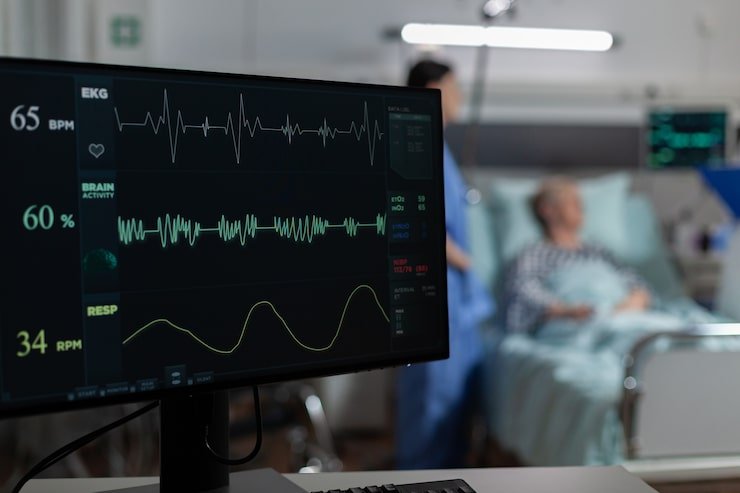
One common mistake is choosing a monitor based entirely on screen size.
A large display with poor resolution or unsuitable ergonomics may not provide a better experience than a smaller, better-balanced model.
Another mistake is buying a high-refresh-rate monitor without checking whether the computer can actually produce the required frame rate.
Ignoring ports is another frequent problem. A display should be compatible with the devices you intend to connect.
Buyers should also avoid assuming that every monitor with the same panel technology will perform identically. Brightness, color performance, calibration, response behavior, and construction can vary considerably.
Key Points to Remember
- A computer monitor is a visual output device.
- Modern monitors commonly use flat-panel display technologies.
- Screen size is normally measured diagonally.
- Resolution determines the number of pixels displayed.
- Refresh rate is especially important for smooth motion and gaming.
- Panel technology affects viewing angles, contrast, color, and response characteristics.
- HDMI, DisplayPort, and USB-C are common modern connections.
- Professional users may require better color accuracy and higher resolutions.
- Ergonomic adjustment can improve long-term comfort.
- Always check compatibility between the monitor and the source device before purchasing.
Final Thoughts
A monitor is one of the most important components of a desktop computing setup because it is responsible for presenting the information users interact with visually. Modern displays are available for almost every requirement, from simple office work and online learning to professional design, video production, gaming, and commercial applications.
Choosing the right display requires looking beyond its size or price. Resolution, refresh rate, panel technology, brightness, connectivity, ergonomics, and compatibility all influence the overall experience.
The best approach is to identify the primary purpose of the monitor first and then compare specifications that directly support that purpose. A carefully selected display can provide better visual clarity, improved productivity, and a more comfortable computing experience.
Frequently Asked Questions
What is a computer monitor?
A computer monitor is an output device that displays visual information generated by a computer or another compatible electronic device. It can show text, images, video, software interfaces, and other content.
What is the difference between a monitor and a display?
The terms are often used interchangeably when discussing computers. A monitor usually refers to the complete external display device, while display can refer more broadly to the screen or visual presentation system.
Is a higher monitor resolution better?
Higher resolution can provide more detail and additional workspace, but it is not automatically better for every user. The appropriate resolution depends on screen size, viewing distance, software, graphics hardware, and budget.
What refresh rate should a monitor have?
The appropriate refresh rate depends on the intended use. Standard productivity can work well at moderate refresh rates, while gaming users may benefit from higher refresh rates when their hardware can support them.
How do I choose the right monitor?
Start by identifying your main use, such as office work, gaming, design, video editing, or general computing. Then compare screen size, resolution, panel technology, refresh rate, response characteristics, connectivity, ergonomics, and compatibility.
One thought on “DEF Monitor: Understanding Computer Monitors, Displays, Features, and Uses”